How to export Instagram saved posts
Instagram will give your saved posts back as a file if you ask Meta's export tool the right way. It takes about two minutes of tapping, and one screen in the middle decides whether the file is useful. This guide shows every screen as it looks today.
- Profile, then the menu
- Settings and activity
- Accounts Center
- Your information and permissions
- Export your information
- Your part
- About two minutes of tapping
- The wait
- Often under an hour for saved posts only
- Download window
- 4 days once it is ready
- Cost
- Free, and no password handed to anyone
Quick answer
Instagram has no export made just for saved posts. Use Meta's export tool: Settings and activity, then Accounts Center, Your information and permissions, Export your information, Create export and Export to device. On the confirm screen, customize the information to Saved only, set the date range to All time and keep the format on HTML, because the JSON format drops the captions. Meta tells you when the file is ready, and the file you want inside it is saved_posts.html.
resaw is free on iPhone. Hand it your saved posts export .zip without unzipping it, and it brings in your whole saved history, titled and filed.
Download on the App StoreThe steps, screen by screen
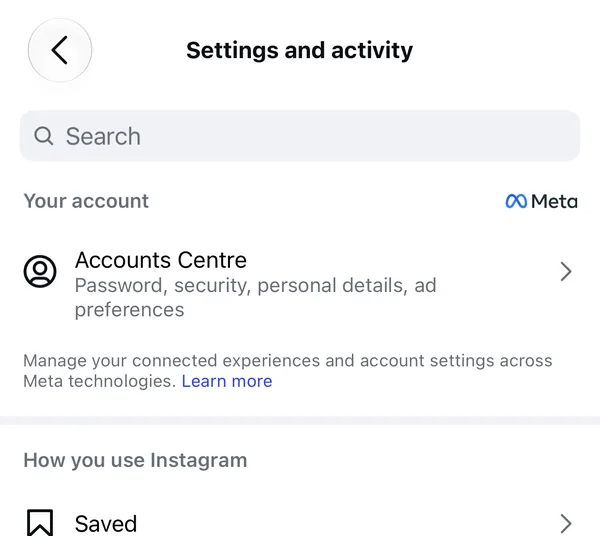
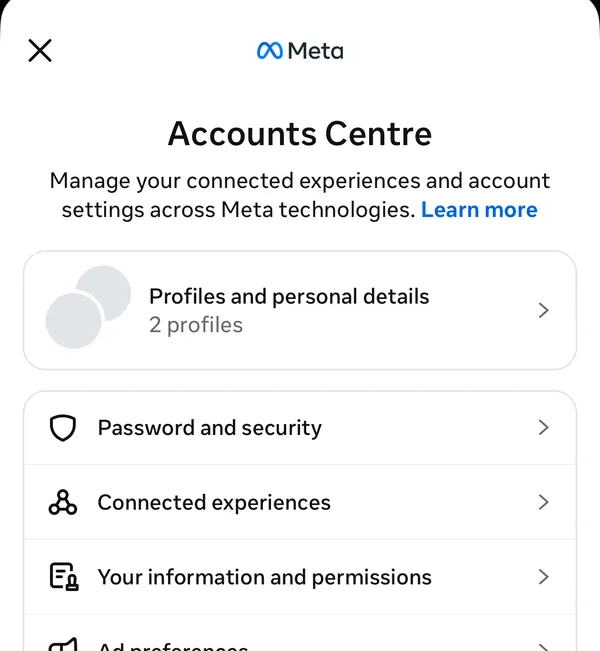
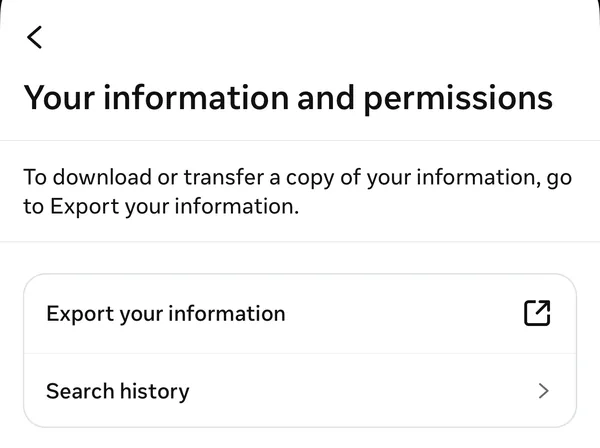
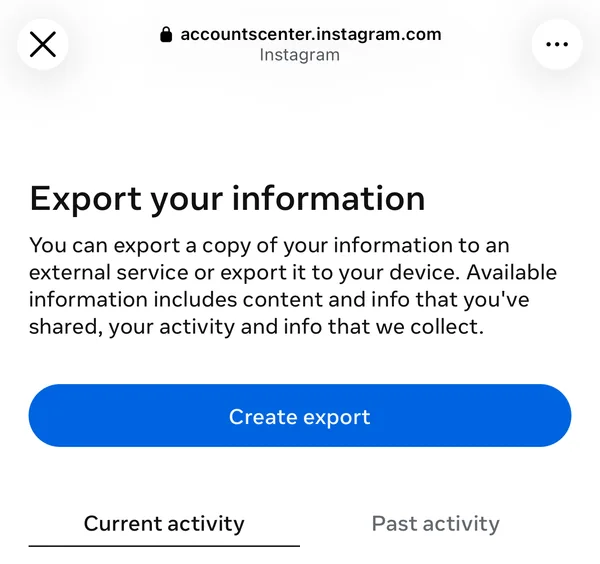
The blue outline marks what to tap. These screenshots come from an iPhone set to UK English, so they say Accounts Centre and Customise; in US English the same screens read Accounts Center and Customize.
-
Open Accounts Center
In Instagram, go to your profile, tap the menu at the top right and open Settings and activity. Under Your account, tap Accounts Center.
Not the Saved row further down. That opens your saved grid inside Instagram, which has no export.
-
Your information and permissions
Accounts Center holds the settings Instagram shares with Facebook and Meta's other apps. Tap Your information and permissions.
-
Export your information
Tap Export your information. Older versions of the app call it Download your information.
The next page opens as a web page inside Instagram. Its address bar reads accountscenter.instagram.com, which is Meta's own site.
-
Create export
Tap Create export. If more than one profile is linked to your Meta account, pick the Instagram profile whose saves you want.
-
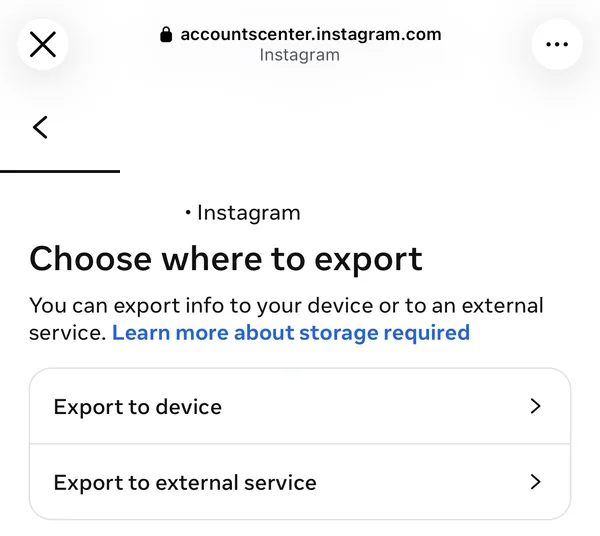
Export to device
Choose Export to device. The other option sends a copy to another company's service, which you do not need.
-
Set the four options on Confirm your export
This is the screen that decides whether the file is worth having. Its defaults are set for a full account backup, not for your saved posts, so check every row before you start.
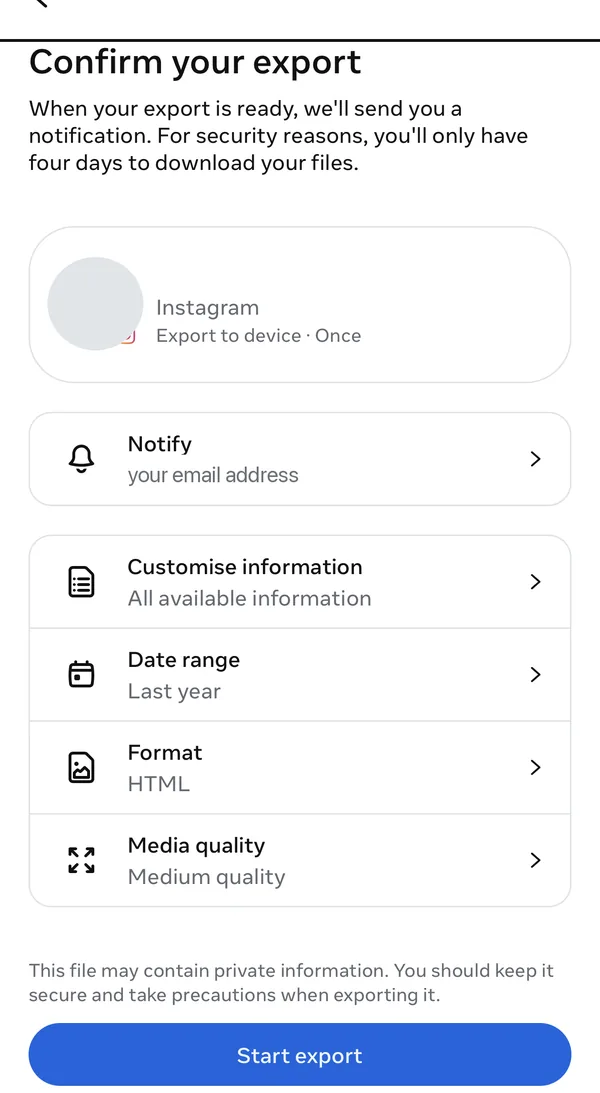
- Customize informationSaved only
It starts as All available information. Tap it, untick everything except Saved, then tap Save. The file is far smaller and arrives sooner.
- Date rangeAll time
It starts as Last year, which quietly leaves out every older save, often the ones you most want back.
- FormatHTML
The JSON format drops the captions, where the recipes, addresses and ingredient lists live. See what each format keeps.
- Media qualityLeave it as it is
Your saved posts file holds links, not photos or videos, so this setting does not change it.
- Customize informationSaved only
-
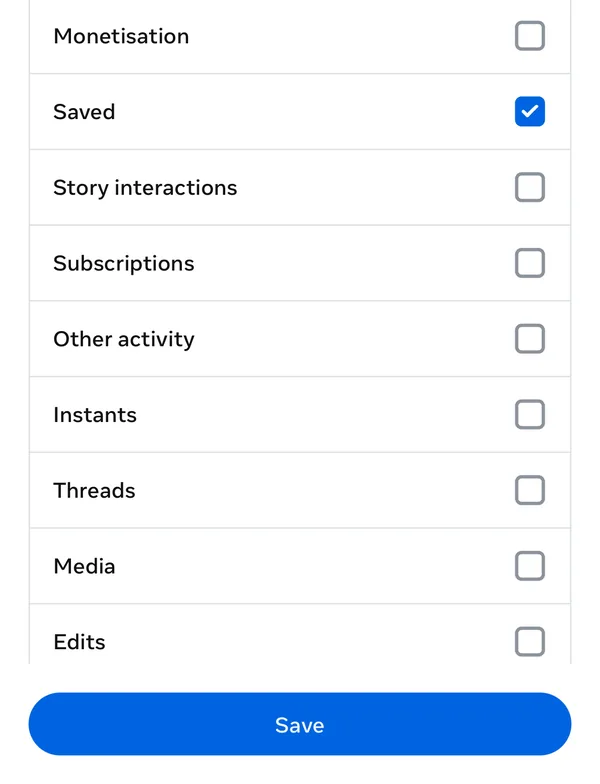
Tick Saved, and only Saved
Inside Customize information, scroll to Saved and tick it. Untick everything else, then tap Save to go back to the confirm screen.
Everything works too, but an export of your whole account can run to hundreds of megabytes and take far longer to arrive.
-
Start export
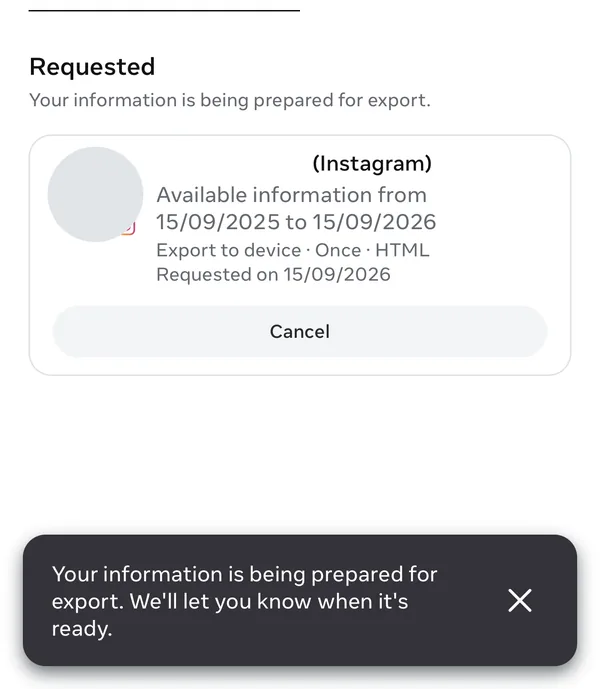
Back on the confirm screen, tap Start export. Instagram says your information is being prepared, and the request appears under Requested. You can close the app: nothing else is needed from you until it is ready.
Set something wrong? Tap Cancel on the request and create a new one. There is no limit on how often you can ask.
-
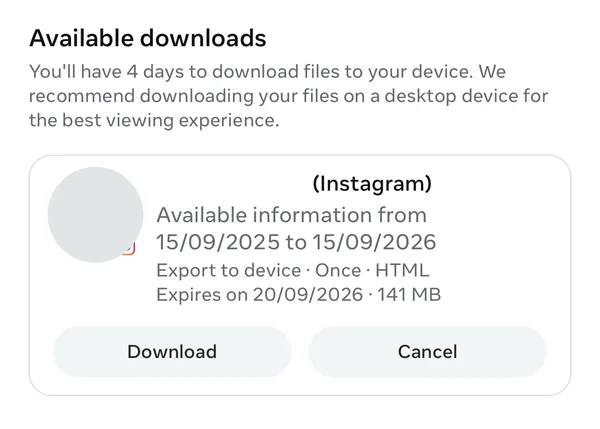
Download it within four days
Meta sends a notification when the file is ready. Go back to Export your information and tap Download under Available downloads. The card shows when it expires, four days after it is ready, and you may be asked for your password again.
Missed the four days? Request it again. A saved posts only export is usually quick the second time.
-
Open it in resaw
In resaw, open Settings, tap Import from Instagram and choose the .zip exactly as it arrived. There is no need to unzip it. Your saves come in with real titles and sorted into folders.
What is actually in an Instagram saved posts export?
There is no button in Instagram that shows your saved posts as a list you can keep, and no export built just for them. What exists is Meta's general Export your information tool, listed in older versions of the app as Download your information. It packages up what is on your account and sends you a zip. Your saved posts are one file inside it.
That file holds the link to each saved post, the account that posted it, the date you saved it, and, if you pick the right format, the caption. It does not contain the videos or photos themselves. Those stay on Instagram, and the links point back at them, which is why the file is small: a few hundred saves is usually well under a megabyte. Inside the unpacked folder it sits at roughly your_instagram_activity/saved/saved_posts.html.
HTML or JSON: which export format keeps your captions?
Choose HTML. The JSON export leaves the captions out.
Both formats contain the same links, so at a glance JSON looks like the cleaner, more technical choice. But Instagram's JSON version of saved posts records little more than the URL, the account handle and a timestamp. The caption, which is where the recipe, the address, the ingredient list and every useful word actually live, is missing.
| Field | HTML | JSON |
|---|---|---|
| Link to the post | Yes | Yes |
| Account that posted it | Yes, as Username (sometimes a display name rather than the handle) | Yes, as the entry title |
| Date you saved it | Yes, as a readable date and time | Yes, as a Unix timestamp |
| Caption | Yes (99% of entries had one in a real 866-post export we tested) | No |
| Hashtags | Yes, listed separately | No |
| The photos or videos | No, only the link | No, only the link |
Without captions, every save reads as nothing more than a post by an account name. Anything that later tries to sort, search or make sense of that archive has almost nothing to work with. If you have already requested JSON, it is worth requesting again as HTML.
Source: the saved_posts.html and saved_posts.json files from Instagram's export, as read by resaw's importer. Checked 15 September 2026.
How long does Instagram take to send the export?
Meta does not promise a turnaround, and the honest answer is that it depends entirely on what you asked for. A saved posts only request usually arrives within the hour. A request covering an entire account, with photos and videos at full quality, can take days.
Meta's own help page sets the outside limit and the collection window plainly: "It may take up to 30 days for us to email you an export link", and once it is ready, "you'll have 4 days to export your information" from the Available downloads section in Accounts Center. So the wait is usually short, the deadline afterwards is not generous, and if you miss it you simply request the file again.
Source: Instagram Help Center, Review and export a copy of your Instagram information. Checked 15 September 2026.
Can I download my saved reels, photos and videos?
Not through this route, and it is worth being clear about that before you wait for a file. The saved posts export gives you links, handles, dates and captions. It does not give you a copy of anyone else's reels, photos or videos, because those posts belong to the accounts that published them, not to you. Meta will hand over the media you posted yourself, which is a different section of the same export.
Browser extensions and downloader tools that scrape the saved grid do fetch the media, and they are the honest answer if a folder full of image files is what you want. What they do not give you is the caption text in a structured file, they need your logged-in session, and they break whenever Instagram changes its markup. The Meta export needs no third party, no password handed over, and no extension.
How to export Instagram saved posts on a computer
The same tool exists on the web. Sign in at accountscenter.instagram.com and follow the same path: Your information and permissions, then Export your information. Every screen from Create export onwards is the same page you saw in the steps above.
The difference is what happens afterwards. A desktop browser unpacks the zip in one double click and lets you open saved_posts.html straight away, while on a phone you have to route it through the Files app first. Requesting on the phone and collecting on a computer is a reasonable split, and so is doing the whole thing on the phone if you intend to import the file into an app on that phone anyway.
What is inside saved_posts.html?
Opened in a browser, it is a long, plain list with one small block per saved post: a link back to the post on instagram.com, the caption, its hashtags, the username and the date you saved it. There is no styling to speak of and no images, because the file only points at them.
That is genuinely better than a tab that only exists inside an app, and it is yours. But it has no structure: nothing is grouped, nothing is titled beyond the account handle, and finding one recipe among nine hundred saves means using your browser's find command and hoping you remember the exact word.
To search, sort and filter that file without installing anything, open it in the free Instagram saved posts viewer. It reads the file in your browser and uploads nothing.
Common questions
The email has not arrived
Check the inbox of the address on the Meta account rather than the one you use day to day, and look in spam. Meta allows itself up to 30 days, and requests covering an entire account genuinely can take days. Completed files are also listed under Available downloads inside Accounts Center whether or not the email reached you.
The download link has expired
Request it again. The collection window is four days, there is no limit on how often you can ask, and a saved posts only request is usually quick the second time.
There is no saved posts file in the zip
Usually this means the request did not include it. When you choose specific information to export, your saved posts have to be selected explicitly.
Every entry says "Post by" and nothing else
That is the JSON export, which contains no captions. Request the archive again and choose HTML.
Does exporting delete anything or unsave my posts?
No. It only takes a copy. Your saved posts stay exactly where they are in Instagram, your collections are untouched, and nothing about your account changes.
Once you have the file
resaw reads saved_posts.html, brings in all your saves, then sorts them into folders on its own: recipes together, places together, each one titled properly rather than filed under a username. Pick the export .zip as it is, with no need to unzip it first.
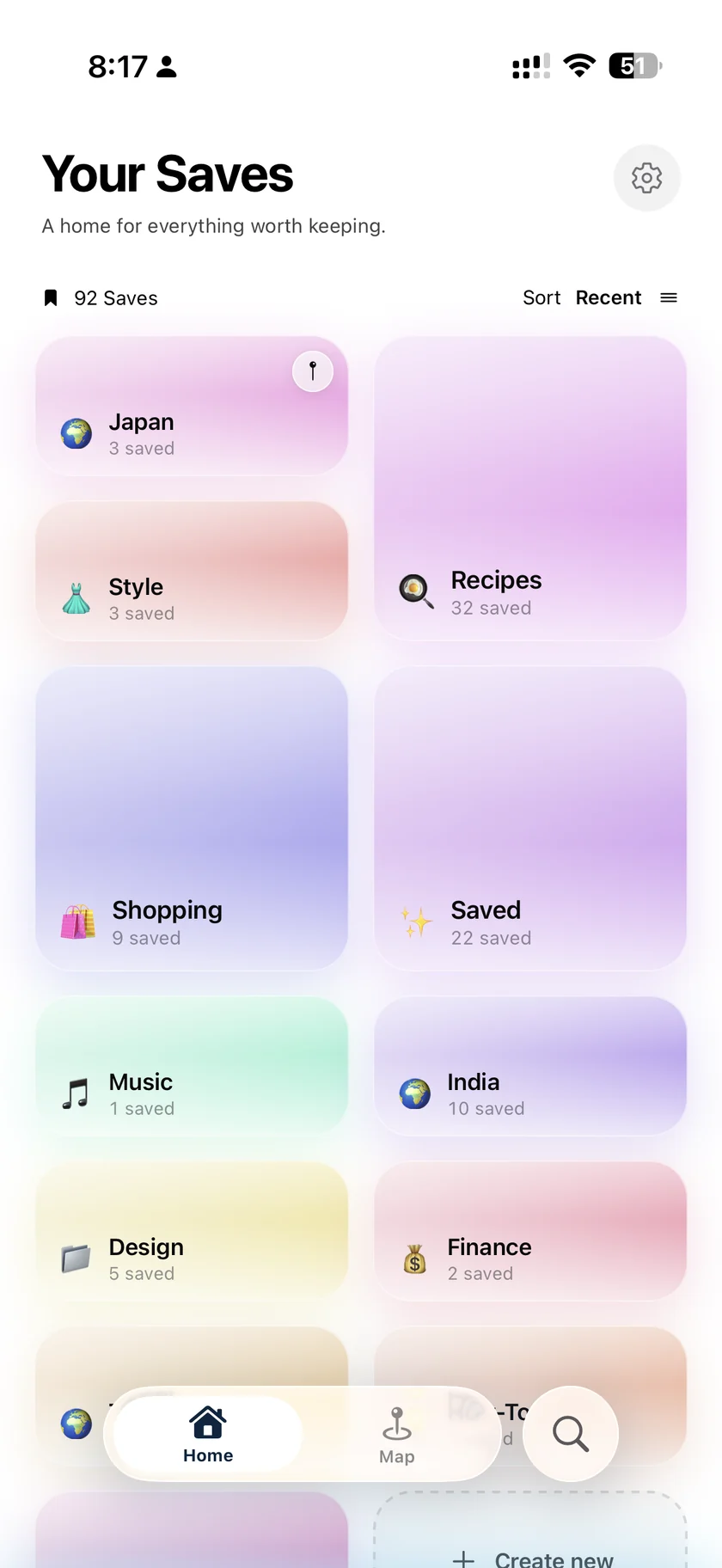
Free, iPhone, iOS 17 or later. You import the export file yourself: resaw never connects to your Instagram account. See how resaw reads the export file.
Instagram changes the wording and position of these screens from time to time. If a menu name here does not match what you see, the path is still Accounts Center, then Your information and permissions, then Export your information.
Next, once the file has landed
- How to organize Instagram saved postsWhat to do with nine hundred imported saves: where Instagram Collections stop working, and how many folders are actually worth having.
- How to save a recipe from an Instagram reelThe captions you just rescued are what turn a saved reel back into an ingredient list and a method.
- How to track restaurants you find on InstagramRestaurant names live in captions too, which is what makes a map of your old saves possible at all.
- How to find saved posts on InstagramWhy the saved tab has no search box, and what an exported archive lets you do instead.